From my experience using IPTV services, setting up an M3U playlist player is actually quite straightforward once you use the right app. I’ve personally tested a few popular options like TiviMate, IPTV Smarters Pro, and Nanomid, and they all work reliably depending on your device.
The key step is importing your playlist correctly. Most IPTV providers will give you either an M3U URL or Xtream Codes API login details, and in my case, using the Xtream Codes method was faster and more stable for loading channels and VOD content.
Simple steps to use an IPTV M3U Player
To effectively use an IPTV M3U smart player, follow these steps:
Step 1: Obtain an M3U Playlist
- Find a reliable source for IPTV M3U playlists. These can often be purchased from IPTV service providers or may be available from legitimate online sources.
Step 2: Install a Smart Player App
- Download and install a smart player app on your device. Popular options include VLC media player, GSE SMART IPTV, IPTV Smarters, or similar apps available on your device’s app store.
Step 3: Add the M3U Playlist to the Player
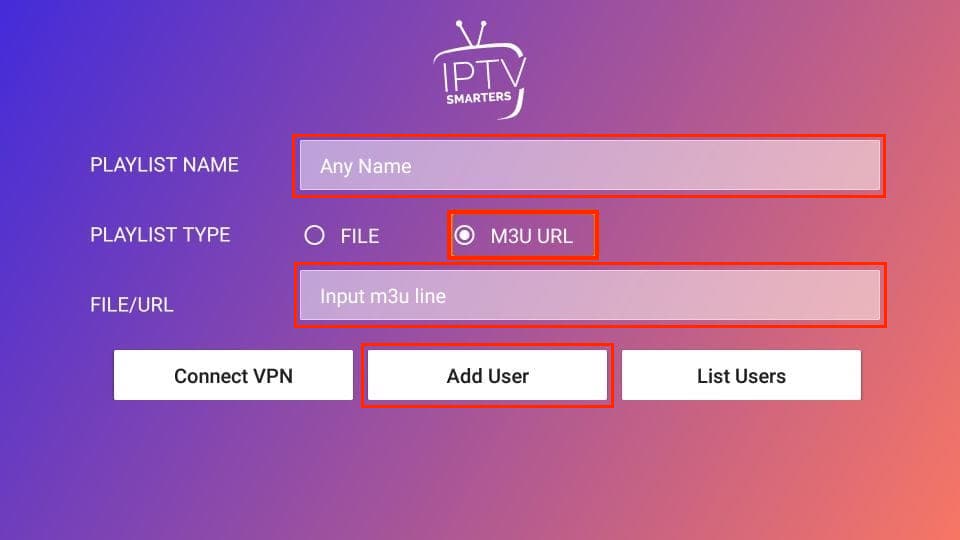
- Open the smart player app and look for an option to add a new playlist or source.
- Choose the option to add an M3U playlist and enter the URL or upload the M3U file from your device.
Step 4: Enjoy IPTV Content
- Once the playlist is added, you should be able to access and enjoy the IPTV content provided in the playlist through the smart player app.
NOTE: Please note that the availability and use of IPTV content may be subject to regional regulations, and it’s important to ensure that you have the right to access the content you are streaming.
How to Add M3U Playlist or Xtream Codes (Video Guide)
From my experience, using an IPTV M3U smart player is much simpler than it initially appears. Once you become familiar with the setup process, it only takes a few minutes to get everything running smoothly.
Feel free to check it out and leave a comment so we can share our experiences!